
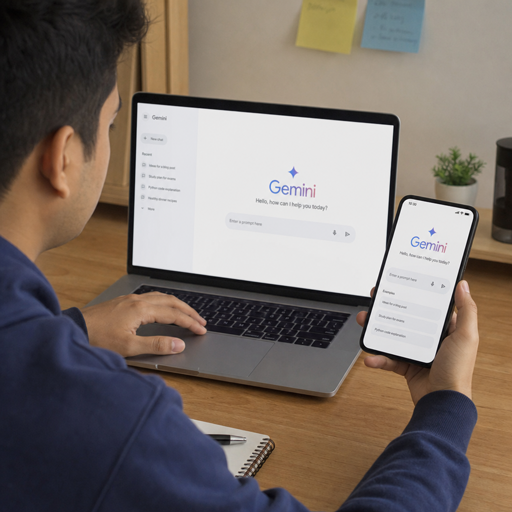
Google Gemini is Google’s AI assistant and model family for everyday search, writing, learning, coding, image work, browser help, and productivity across Google apps. The confusing part is not whether Gemini can help, but which version, plan, or access point you should use: the free Gemini app, Gemini in Chrome, Google AI Plus, Google AI Pro, Ultra, developer models, or a student offer. This guide breaks down the main features, practical use cases, access options, and what to do when issues like google gemini error 13 interrupt your workflow.
What can Google Gemini actually do?
Google Gemini can answer questions, draft and rewrite text, analyze uploaded files, generate and edit images, help with code, support study tasks, and connect with Google services when you enable the right apps or plan. The Gemini app currently includes free access with a Google Account, while paid Google AI plans expand limits, context windows, and access to more advanced features and models. Google’s subscription page lists the free plan as including the Gemini app, access to 3.6 Flash, varying access to 3.1 Pro, image generation and editing, Deep Research, Gemini Live, Canvas, and Gems. (gemini.google)
That means Gemini is best understood as a layered product rather than a single chatbot. A casual user might open the Gemini app to summarize an article or brainstorm dinner ideas. A student might use it to turn notes into flashcards. A developer might use a Flash or Pro model in Google AI Studio. A marketer might use Canvas to prototype an interactive page or generate a first draft for a campaign brief.
The biggest advantage is context. Gemini can work with text, images, audio, video, files, and, when connected, information from Google apps. The biggest limitation is that features vary by country, age, account type, platform, plan, and current usage limits.
The Gemini model names make more sense when you group them by job
Gemini model names can feel like a product maze, especially when terms like Flash, Flash-Lite, Pro, Omni, and Nano Banana show up in different places. The simple way to read them is by role: Flash is usually about fast, capable responses; Flash-Lite is optimized for high-volume, low-latency work; Pro is aimed at deeper reasoning; and image-specific Gemini models power advanced visual creation.
Google describes Gemini 3.8 Flash as a model built for complex, large-scale agentic tasks, with examples that include game creation, interactive maps, 3D visualizers, and multimodal work across text, images, audio, and video. Google’s examples also show Nano Banana being used for textures and image generation in creative experiences. (blog.google)
For developers, Flash-Lite is more about efficiency. Google’s developer documentation describes Gemini 3.5 Flash-Lite as the latest stable 3.x Flash-Lite model for high-throughput execution, while earlier Flash-Lite models are positioned for cost-sensitive, frequent tasks. (firebase.google.com)
In practical terms, choose the model category by the task:
- Use Flash-style models when you need speed plus strong general quality, such as summarizing long pages, drafting emails, translating receipts, or building quick prototypes.
- Use Flash-Lite-style models when volume and latency matter more than depth, such as tagging many short snippets, extracting fields, or translating simple inputs at scale.
- Use Pro-style models when the task needs more reasoning, planning, math, coding, or careful comparison.
- Use image-focused Gemini models when the outcome is visual creation, editing, transformation, or design exploration.
- Use Nano or on-device capabilities when privacy, latency, or device-level assistance is the priority, depending on what your device and region support.
This grouping is not a perfect substitute for reading current model documentation, but it helps remove the anxiety of choosing. If your task is simple and repetitive, start light. If it is nuanced, high-stakes, or multi-step, move up.
Google Gemini free access is enough for many everyday tasks
The phrase google gemini free usually refers to using the Gemini app without a paid Google AI plan. For many people, that is a sensible starting point. You can test the assistant, learn how prompts work, try creative writing, ask for explanations, use Gemini Live where available, and explore tools such as Canvas or Deep Research within the limits Google provides.
Free access is best for:
- Everyday writing help Ask Gemini to draft a polite email, simplify a paragraph, suggest titles, or turn rough notes into a cleaner outline.
- Learning and explanation Paste a concept and ask for a plain-English explanation, a study plan, a short quiz, or a comparison of ideas.
- Light creative work Try image generation, story ideas, captions, brainstorming, and mood-board language before committing to a paid plan.
- Basic productivity Summarize notes, plan trips, organize tasks, or prepare questions for a meeting.
- Testing whether Gemini fits your workflow Before paying, use the free tier to see whether Gemini’s style, speed, and integrations match how you work.
Free access has limits. Google says Gemini Apps use compute-based usage limits that factor in prompt complexity, the model or feature used, and chat length, with limits refreshing over time. Paid plans expand access, but they do not make every limitation disappear. (support.google.com)
Paid plans are mainly about higher limits, stronger models, and integrated tools
Upgrading makes sense when you regularly hit limits, need larger context windows, want deeper model access, or use Gemini as part of daily school, work, creative, or development tasks. Google’s Gemini Apps help page lists context windows of 32k tokens without an AI plan, 128k tokens for AI Plus, and 1 million tokens for AI Pro and AI Ultra. That matters when you work with longer documents, bigger files, or extended research threads. (support.google.com)
Google AI Plus is positioned as an affordable step up from free access, while Google AI Pro adds broader advanced access for productivity and creativity. Google AI Ultra is the premium tier for users who want the highest limits and earlier access to advanced features, with Google describing Ultra as offering up to 20x higher usage limits than Pro and first access to features such as Deep Think and Gemini Spark in select countries. (gemini.google)
A practical upgrade checklist:
- Stay free if you use Gemini occasionally for brainstorming, quick summaries, simple explanations, or casual image ideas.
- Consider Plus if you want more room for everyday productivity and creative tasks without moving to the full Pro tier.
- Consider Pro if you rely on Gemini for school, coding, research, writing, long documents, or Google app integration.
- Consider Ultra only if Gemini is central to your workflow and you need the highest access levels or early experimental tools.
The most common mistake is upgrading before identifying the bottleneck. If your problem is a weak prompt, a broken upload, or a temporary service issue, a paid plan may not solve it. If your problem is usage limits or model access, an upgrade is more likely to help.
Google Gemini student options can be a strong deal
Google Gemini student access is especially important because many students need AI for studying, not just content generation. Google announced in August 2026 that eligible U.S. college students can claim one year of Google AI Pro at no cost, while eligible college students outside the U.S. can receive one year of Google AI Plus where available. For the U.S. google gemini student offer, Google says the offer must be redeemed by December 31, 2026, requires a valid form of payment, and automatically charges $19.99 per month after the trial unless cancelled earlier. (blog.google)
This is where terms like google gemini pro student and google gemini student offer usually point. The offer is not just “a chatbot for school.” Google says the U.S. student plan unlocks higher Gemini usage limits, Gemini Spark, Gemini in Google apps like Gmail and Google Docs, 5 TB of storage, Google Health Premium, and more. (blog.google)
Students can use Gemini for:
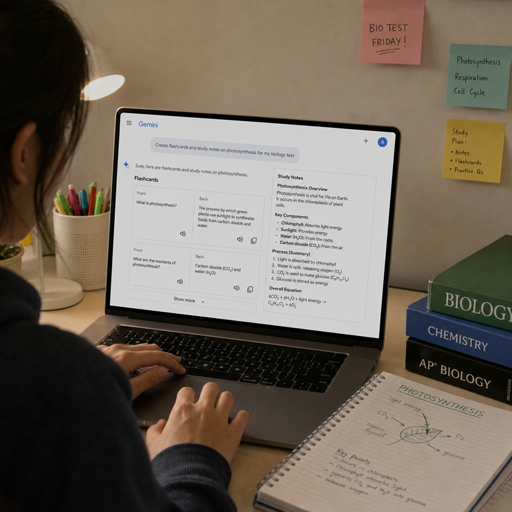
- Turning lecture notes into a study guide.
- Creating flashcards from class material.
- Asking for practice questions before an exam.
- Breaking down a hard concept into simpler examples.
- Building a research outline from approved sources.
- Drafting a project plan for a group assignment.
- Reviewing code and explaining errors.
Google has also described student-focused Gemini features such as study guides, flashcards, custom quizzes, and exam prep tools, including access to more advanced models and NotebookLM features for eligible college students. (blog.google)
Students should still use Gemini carefully. It can help structure learning, but it should not replace reading, problem-solving, citation checking, or school policy compliance. The best use is active learning: ask it to quiz you, challenge your answer, explain why you were wrong, or create a study schedule.
Gemini in Chrome brings AI into the browser
Gemini in Chrome is different from opening the standalone Gemini web app. It brings an AI assistant into the browser so you can ask questions about the page you are on, compare information across tabs, and work with supported Google apps without leaving your browsing flow. Google says Gemini in Chrome can summarize lengthy content, compare information across multiple tabs, schedule meetings with Calendar, check location details with Maps, draft emails with Gmail, and answer questions about YouTube videos. (blog.google)
This is useful when your work already happens in tabs. Imagine planning a trip with hotel pages, maps, event listings, and a shared itinerary open at the same time. Instead of copying details into a separate chat, Gemini in Chrome can help organize the information from the context you are viewing, subject to availability and permissions.
It is also useful for research. If you have several articles open for a paper or strategy brief, Gemini can help compare arguments, identify repeated themes, or pull out questions you still need to answer. Google has said Gemini in Chrome can understand the context of what you are doing across multiple tabs and integrate with services such as Google Docs and Calendar. (blog.google)
Privacy still deserves attention. Google’s Gemini Apps Privacy Hub explains that Gemini can use Connected Apps and other services to provide tailored help, and that data shared may include chat information, device preferences, location, and content from connected apps such as emails, files, events, photos, and videos. Review settings before connecting sensitive accounts. (support.google.com)
Connected Google apps make Gemini more practical
Gemini becomes more useful when it can help where your information already lives. With the Google Workspace app connected, Gemini can reference Gmail, Docs, Drive, Calendar, Tasks, and Keep in supported ways. Google’s help page says you can mention Gmail, Docs, Drive, Calendar, Tasks, and Keep in prompts to work with relevant content. (support.google.com)
That opens the door to more practical workflows:
- “Summarize the last email thread about this project and list open decisions.”
- “Find the document where we discussed the Q4 launch plan.”
- “Turn these meeting notes into tasks.”
- “Draft a reply that confirms the timeline but asks for the missing file.”
- “Create a project brief from the source doc and calendar deadline.”
Google also states that Gemini does not train generative AI models directly on your Gmail inbox, Drive, Contacts, Calendar, other Workspace apps, or Google Photos imagery and audio. That privacy note matters, but users should still avoid sharing highly sensitive content unless they understand their organization’s settings and Google account controls. (support.google.com)
For teams, the real benefit is less switching. Gemini can reduce the friction between reading, deciding, and acting. For individuals, it can turn scattered information into something easier to use.
Creative features go beyond text generation
Gemini is not limited to written answers. Depending on your access and region, you may see tools for image generation, photo editing, video generation, Canvas projects, audio-style summaries, coding prototypes, and visual interfaces. Google has described Canvas as a creative space inside Gemini for building what you can describe, including interactive infographics, quizzes, and app prototypes. (blog.google)
This is where Gemini becomes more like a creative partner than a search box. You can ask it to turn a product idea into a mock landing page, create a quiz from a lesson, build a small interactive map, or generate a visual concept for a presentation. Developers can use Gemini models in AI Studio or through the API to prototype faster, while non-developers can use the app interface for lighter creative work.
A good creative prompt usually includes:
- The goal Say what you want the final output to do, not just what it should be.
- The audience A study quiz for ninth graders should look different from a board presentation.
- The source material Provide notes, constraints, examples, brand terms, or file uploads when appropriate.
- The format Ask for a checklist, outline, script, lesson, prototype, image concept, or revision plan.
- The revision instruction Tell Gemini what to improve after the first attempt: shorter, warmer, more technical, more visual, or easier to scan.
Google Gemini error 13 is usually something to isolate, not panic over
Google Gemini error 13, often seen as “Something went wrong(13),” has appeared in Gemini conversations and uploads, but Google does not provide a universal public definition for every occurrence of the code in the consumer app. There was, however, a May 2026 Gemini incident in which affected users saw “Something went wrong(13),” and the reported cause was a combination of insufficient database resources and application bugs, with no workaround at the time. (aistatusdashboard.com)
So, if you see google gemini error code 13, do not assume your prompt, browser, or subscription is automatically the cause. Start by identifying the scope.
Try this sequence:
- Check whether Gemini is having a service issue If many users are affected, waiting may be the only realistic fix.
- Test a new chat If one long conversation fails but a fresh chat works, the thread may be the problem.
- Remove attachments If text works but an image, file, or video fails, simplify the upload and try again.
- Switch device or browser If the app works but the browser fails, clear site data, disable extensions, or try an incognito window.
- Switch accounts if appropriate If one account fails everywhere and another works, the issue may be account-specific.
- Change models where available If Pro fails and Flash works, use the working model temporarily and report the issue.
- Send feedback with details Include the exact error, time, device, browser, account type, whether attachments were involved, and whether it happens in new chats.
Avoid deleting important conversation history unless you are sure you do not need it. Error 13 is a sign to narrow the problem, not to randomly reset everything.
The best way to use Gemini is to match the tool to the task
Google Gemini is most valuable when you choose the right access point. Use the free app to learn the basics. Use Gemini in Chrome when your work depends on web pages and tabs. Connect Google apps when your workflow lives in Gmail, Docs, Drive, and Calendar. Consider a paid plan when limits, context, or model access are slowing you down. If you are eligible for a google gemini student offer, read the terms, mark the renewal date, and use the year to build better study habits.
The practical takeaway is simple: start small, be specific, and upgrade only when your use case proves it. Gemini can brainstorm, explain, summarize, create, code, study, and organize, but it works best when you give it context, check its output, and choose the right version for the job.